November 6, 2026
Is Your Rig Ready for Nosana?
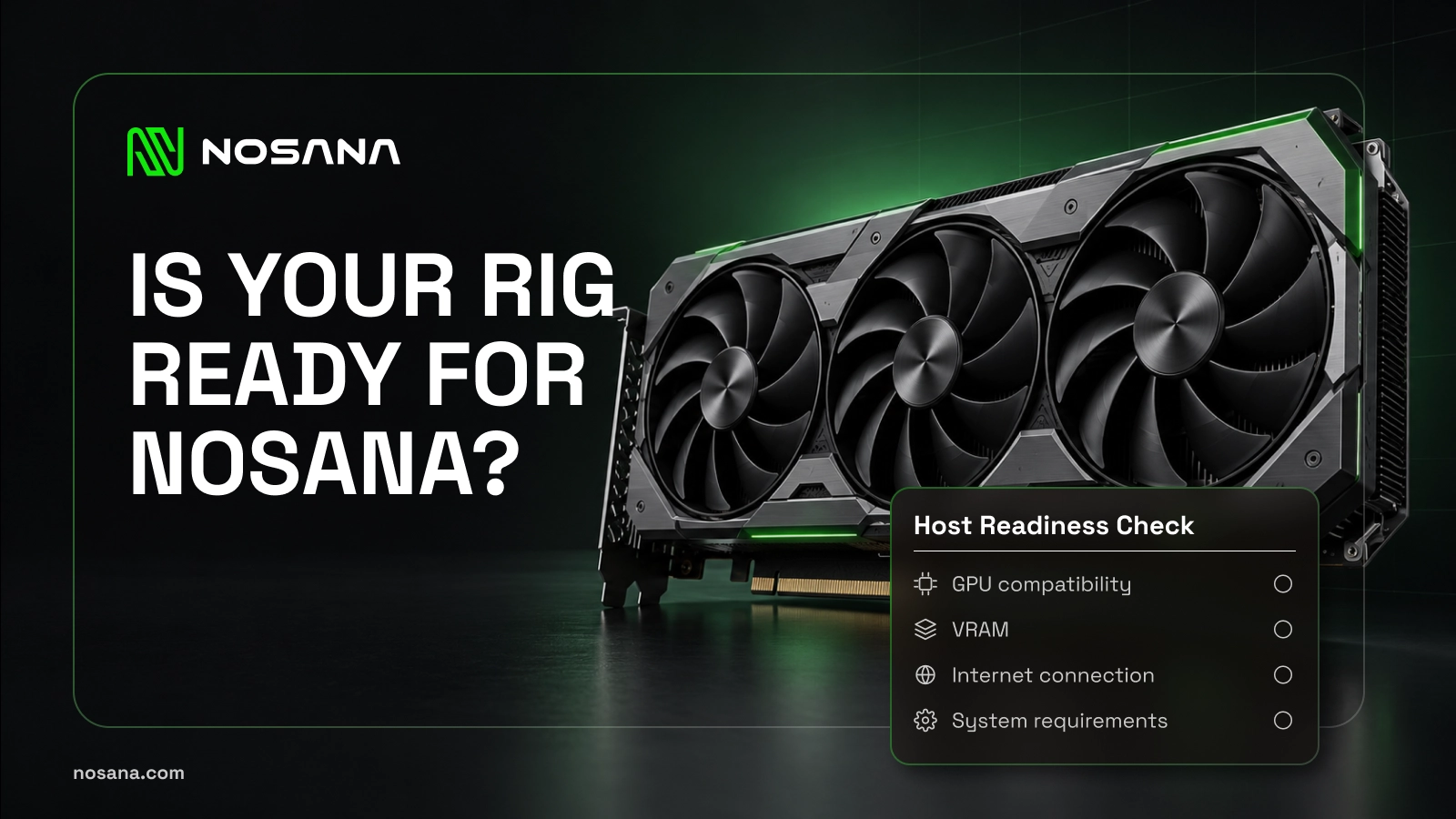
Behind every AI application is hardware doing the work. Whether a developer is running a language model or building an AI tool, they need access to GPUs, and those GPUs don’t all have to sit in a large cloud provider’s data center. Some can come from independently owned machines, including a workstation or gaming PC like yours.
That’s where Nosana comes in. Nosana is a decentralized GPU compute network built on Solana that connects developers who need computing power with people who can provide it. Developers use the network to run AI inference and other compute workloads, while GPU owners earn $NOS when their machines run customer jobs.
If you already own an NVIDIA GPU, hosting could give your hardware another use. Before getting started, though, it’s worth checking more than the name on your graphics card. A good hosting setup brings together compatible hardware, a reliable connection, and a machine that can run comfortably for the hours you make it available. Here’s how to see whether yours is ready.
Start with the GPU you already have
You don’t need to assume that hosting means buying a new rig. Your first step is to check your existing card against Nosana’s supported GPU list.
Nosana supports selected NVIDIA models from the RTX 30, 40, and 50 series, alongside professional and data center hardware, including RTX A6000 and 6000 Ada series, A100, and H100 GPUs. Support depends on the exact model, so don’t rely on the series name alone. Check the full name of your card before spending time on installation or money on upgrades
This is also a useful moment to think about how you use the machine. A spare workstation and your everyday gaming PC have different availability. Both deserve a realistic plan for when their GPU can be dedicated to hosting.
Give your GPU the support it needs
The graphics card does the headline work, but it relies on the rest of your system. AI workloads need memory, space for models and files, and a connection that can move data reliably.
Nosana’s hosting documentation lists these requirements:
| Component | Requirement |
|---|---|
| GPU | A supported NVIDIA model |
| System RAM | At least equal to VRAM (higher for high-VRAM markets) |
| Storage | At least 1 TB NVMe SSD per GPU |
| Internet | Varies by market/VRAM; 250 Mbps down / 100 Mbps up minimum for GPUs > 24 GB (increasing to 500/200) |
| Operating system | Native Linux; Ubuntu 20.04 or newer recommended in the documentation |
Bandwidth requirements vary depending on the market and your card’s VRAM. For GPUs with over 24 GB of VRAM, the minimum requirement is currently 250 Mbps download and 100 Mbps upload, which will soon increase to 500 Mbps download and 200 Mbps upload. System RAM must at least match your GPU’s VRAM, though high-VRAM markets often demand significantly more. Additionally, plan for at least 1 TB of NVMe storage per GPU. The currently documented configuration supports one GPU per PC and one private key per GPU.
When checking your setup, look at what’s actually available. A drive shared with a large game library may leave little room for hosting, and a fast internet service doesn’t always deliver the same speeds at your desk. Test both download and upload speeds on the machine you intend to use.
Make room for Linux
If your PC runs Windows, there’s an extra step before you can host: installing native Linux. Nosana no longer supports Windows or WSL2 for GPU hosting.
You can keep Windows, though. A dual-boot setup lets Windows and Ubuntu live on the same PC, with a choice of which to start when you turn it on. That can work well if you want to keep your usual apps and games while making the machine available for hosting at other times.
The trade-off is straightforward: your Nosana host is offline whenever you’re using Windows. Plan around that availability, and back up important files before changing partitions or installing another operating system. Nosana’s Windows-to-Linux guide walks through the process.
Prepare for longer runs
Once you know your hardware qualifies, give the machine a little attention before putting it to work. Hosting can mean sustained activity, so it helps to catch small problems early.
Start with cooling. Make sure the case has room to circulate air. Watch temperatures during sustained use and investigate crashes or overheating before leaving the system running unattended.
Then check your connection under everyday conditions. Does it remain stable when other people are streaming or using the network? A wired Ethernet connection is strongly preferred for maximum reliability, as Wi-Fi drops or speed fluctuations can impact performance. Keep an eye on available storage, too, so a nearly full drive doesn’t become your next troubleshooting task.
These are practical preparation tips rather than additional Nosana requirements. They help you build a setup that is easier to run and maintain.
Connect your rig to the network
With your machine prepared, the official hosting guide takes you through the software setup: Docker, NVIDIA drivers, the NVIDIA Container Toolkit, and the Nosana host installation. The registration process includes a benchmark to check your hardware.
Work through the steps in order and confirm that each one succeeds. Checking that your GPU is recognized before moving on can save you from untangling several issues later. Back up your node’s wallet key securely during setup, and never share it in support messages or screenshots.
If something doesn’t work, the troubleshooting guide covers common driver, toolkit, and Docker issues.
Premium vs. Community Markets
When joining the Nosana network, hosts enter either a Community or Premium market depending on their hardware tier and performance capabilities. During onboarding, the Nosana benchmark test automatically measures your system’s computational throughput, memory capacity, and network stability to determine whether your rig qualifies for Premium status.
Meeting or exceeding the technical benchmark for Premium hardware indicates that your setup is capable of running high-demand workloads, but passing the test does not result in an automatic upgrade. Admission to Premium markets also depends on current demand from clients and available market capacity. If Premium capacity is full, qualifying hosts remain active in Community markets until additional Premium slots open up.
Know what to expect once you’re online
After setup, you can follow your host’s statistics and $NOS earnings in the Host Dashboard. Nosana Explore gives you a view of market activity and queues.
It’s useful to understand the difference between being available and being hired. An online host can receive work, but it won’t necessarily run customer jobs continuously. When a market has more available hosts than jobs, hosts may wait in a queue.
Treat your first period of hosting as a chance to learn how your setup performs. Track completed work, earnings, and electricity costs for the whole PC. Those results will give you a more useful picture than assuming a fixed daily return, especially if you’re deciding whether to invest in upgrades.
Ready for your rig’s next workload?
Getting started begins with a few practical checks: a supported GPU, enough memory and storage, reliable internet, and native Linux. From there, careful setup and regular monitoring will help you understand what hosting looks like for your machine.
If your rig meets the requirements, you can take the next step toward making it part of the infrastructure developers use to run AI.
Check your GPU and get started with Nosana
Useful Links
Stay Updated with Nosana
Get the latest insights on AI infrastructure, GPU launches, and network innovations — all in one place